CrashPresenter (ProPresenter)
How to use this wonderfully crafted, totally bug-free, and absolutely intuitive piece of software perfection!
- Troubleshooting
- Basics of running Propres
- Opening ProPres
- Importing from Planning Center for Chapel/Vespers
- Importing from other sources for other events
- Linking songs to the chapel/vespers playlist
- Creating an arrangement
- Formatting the Songs
- Editing a slide
- Etiquette for running slides
- Creating a New Presentation
- Creating a new slide
- Order of Events (How to setup and run ProPres from the moment you come in to the end of the event)
- Macros
- Layers
- Library
- Media Bin
- The different viewing tabs
- Timers
- Themes
Troubleshooting
If there is an issue with ProPresenter, restart the app
This will fix 95% of all issues
If that doesn't work, restart the whole computer
This will fix 99% of all issues
Basics of running Propres
Opening ProPres
The ProPresenter app is in the picture below, just click on it and this will open the app ready to go. If you get a pop-up asking to update ProPresenter, ignore that. Never EVER update ProPresenter on a show day! EVER!!!

Importing from Planning Center for Chapel/Vespers
What is a Planning Center (aka Planning Center Online aka PCO)??
An online planning resource we use to schedule chapel, vespers, and other worship events. It can be found under the Benson Links webpage and use the login info that can be found in the password vault that Jason has yet to set up.
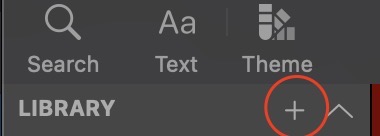
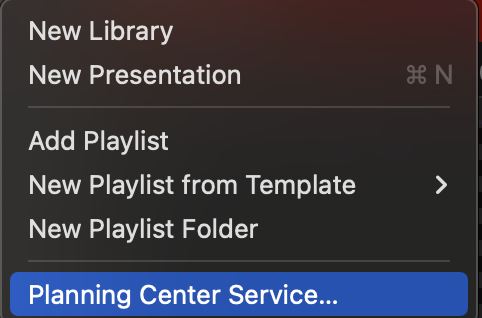
Hit that plus icon and navigate to the Planning Center Service Option.
Sign in (if needed) and click on the right folder that would contain the event that you are running (Mon chapel v. Wed chapel v. Vespers). The event will be titled the date of the event.
Click on the right event and then hit select, this will then import the planning center data into ProPresenter and open the playlist. At this point, you are ready to start importing songs.
Importing from other sources for other events
- presentation
- download as a microsoft powerpoint and import
- no pdfs!!!!!!!
- drag and drop jpegs
- audio: also can drag and drop but don't do this in propres plz. qLab is preferred in almost every instance.
- video: drag and drop, or import as media from local location on computer
Linking songs to the chapel/vespers playlist
On a song, select the magnifying glass icon (photo)
if not, go to song select/ ccli to import the song, (photos walking through this)
Creating an arrangement
Definition:
go up to the top and click on the button in the photo
PHOTOS
from here, name a new arrangement "YYYY-MM-DD Event" and hit "Ok".
Formatting the Songs
2-3 lines per slide, break on natural vocal breaks (whether it is a completed phrase or due to natural pacing) include a video with examples?
same with slide breaks, but more extreme (breath = slide break, different phrases/sentences, also according to natural line breaks)
if they are changing fast, consider combining into one slide
slow transitions, break it up, trying to keep time on each slide to be similar without leaving one slide up for too long
pretty instinctive
include link or pdf to complete handbook
Editing a slide
Editing mode and quick edit
Etiquette for running slides
Rule of thumb is to always have the slide up before the audience and band get to it.
make things faster to get stuff up by using shortcuts!
the band is in-charge of the arrangement technically, you follow them and they don't follow you
Creating a New Presentation
else:
go up to top and click on plus icon and then go to "new presentation"
click that, add to correct library and playlist, and there you go
also, can use command + n to make one
Creating a new slide
go to plus icon at bottom, click either add new blank slide or in the theme you want
it will add it after the currently selected slide
Order of Events (How to setup and run ProPres from the moment you come in to the end of the event)
Pre-Event:
- turn confidence monitor on
- log into computer (password in vault JASON has yet to set up)
- Turn projector on, bring screen down
- open propres
- Planning Center Import
- link songs
- import and link presenter slides (whenever they get to you :))
- link 10:20 video and bumper video
- link any announcements
- start working on song formatting
- help orphans and widows
- make the slide transitions flow (make 1 or 3-line slides if needed)
- make sure the theme is correct
- create an arrangement
- make a blank, intro, and copyright slide if they don't exist
- get slides in order using arrangement as the band practices, just follow them and hope for the best
During Event:
- cry
- murder propres
Post-Event:
- turn projector off and bring screen up if needed
- go to a blank slide
- turn confidence monitor off
Macros
Macros are awesome! With them, you can control a lot of different things and aspects of both ProPres and other software/hardware that is connected. Below are the sections of Macros that we use most often and what they specifically do.
Chapel Elements
When to Use Them:
- Band macro on song with lyrics when the band is singing
- Speaker macro when someone is presenting or talking with slides on the screen
- Nick bug and talking macro are currently not being used
Macro List:
Band Macro:
- Changes confidence monitor to lyric display (confidence monitor = tv on seats at the front of the stage so the people on stage can see what lyrics or slides are next)
- Starts a timer (not used currently)
- Makes the lyrics also go to lower 3rds (the lyrics at the bottom of the screen for the recording, whether that is on or off is controlled by the ProPres Operator)
Speaker Macro:
- Changes confidence monitor to speaker display (definition above)
- Another unused timer
- Removed the lower 3rds (definition above)
Talking Macro (No Lower 3rds):
- Just removes the lower 3rds
Nick Bug:
- Adds a title in the lower right corner saying the name of the speaker and their title. These are edited in props.
Projector Things
When to Use Macros:
- Screen Up/Down: self-explanatory, use when you need to move the screen
- Projector On/Off: same, use when you need to turn the projector on/off
- Projector Off and Screen Up: Use at the end of an event to save having to push an extra button
- Projector On and Screen Down: Use at the beginning of the event
Macros:
- Screen Down/Up: makes the projector screen go down/up. If it is not working, you should find the remote (picture) in the drawer at FOH and click that. It is a finicky thing at best, so waving your arm around and walking up and down the aisles while clicking the button will usually let you find somewhere that it works
- Projector On/Off: turns the projector on/off. If it is not working, go to Benson Links and choose "Organ Projector" (picture) and then turn it on/off (standby) from there (picture)
- Projector Off and Screen Up: just a group of the two macros
- Projector On and Screen Down: just a group of the two macros
Outside Sources with Macros
This is a really cool feature where you can control things like MadMapper with ProPresenter. This will be used to control the video wall automatically. Once set up, it works just like a macro.
For setup, that would require googling or getting Jason to fill out this section since he has done it.
How to Create a Macro
Plus icon in top right
adds a macro
rename it however you wish
right-click to add actions
right-click for a lot more options
video walking through all right click options
Layers
ProPresenter is based on Layers. This is one of the key concepts to know in how to design and work with ProPres. Starting from bottom up, the layers are: Video, Media, Slide, Announcements, Props, Messages, and Audio. This means that if a media and slide element are being used and the slide is full-screen, it will cover up media, and the same for announcements, and up. It is just a system of various things on top of each other, starting with video and going up to audio.
If there isn't a book for a layer, that means that we generally don't use it.
Video
Media
Slide Content
Announcements
Props
Audio
Library
Media Bin
The different viewing tabs
Show, Edit, Reflow, Bible, ect.
Show
This is the default view that you see when you initially open ProPresenter.
In this view you can find:
- libraries
- playlists
- media bin (have to press a button though)
- view of the screen
- slides!
- audio
- props (have to press a button)
- macros (have to press a button)
- stage displays (have to press a button)
- and other stuff to update later!!
Long list! This is basically your home page, where you can find most things that you would need to use during an event.
Picture with arrows!
Edit
Reflow
Bible
we don't use this